Overview
This document explains how to implement a Fabric XL ad unit in GAM for Guernsey Press sites.
Example line item (GAM link):
7192119276 (order 3817848929)
What is Fabric XL?
Fabric XL is a high-impact ad format that provides an immersive advertising experience. It typically spans the full width of the page and includes rich media capabilities.
Specifications
| Format | Fabric XL |
|---|---|
| Image Dimensions | 1300 × 500 pixels |
| Expected Creative Size (GAM) | 970 × 251 |
| File Size | Max 200KB initial load |
| File Type | Image |
⚠️ Important: When trafficking the line item in GAM, you must insert the expected creative size as 970x251. This is required for proper ad serving.
Example: Expected Creative Size in GAM

When setting up the line item, add 970x251 as the expected creative size.
Creative Requirements
When designing the Fabric XL creative, follow these guidelines:
| Design Area | 1300 × 500 pixels |
|---|---|
| Safe Area | 740 × 250 pixels (keep important content within this area) |
Design Guidance: Safe Area
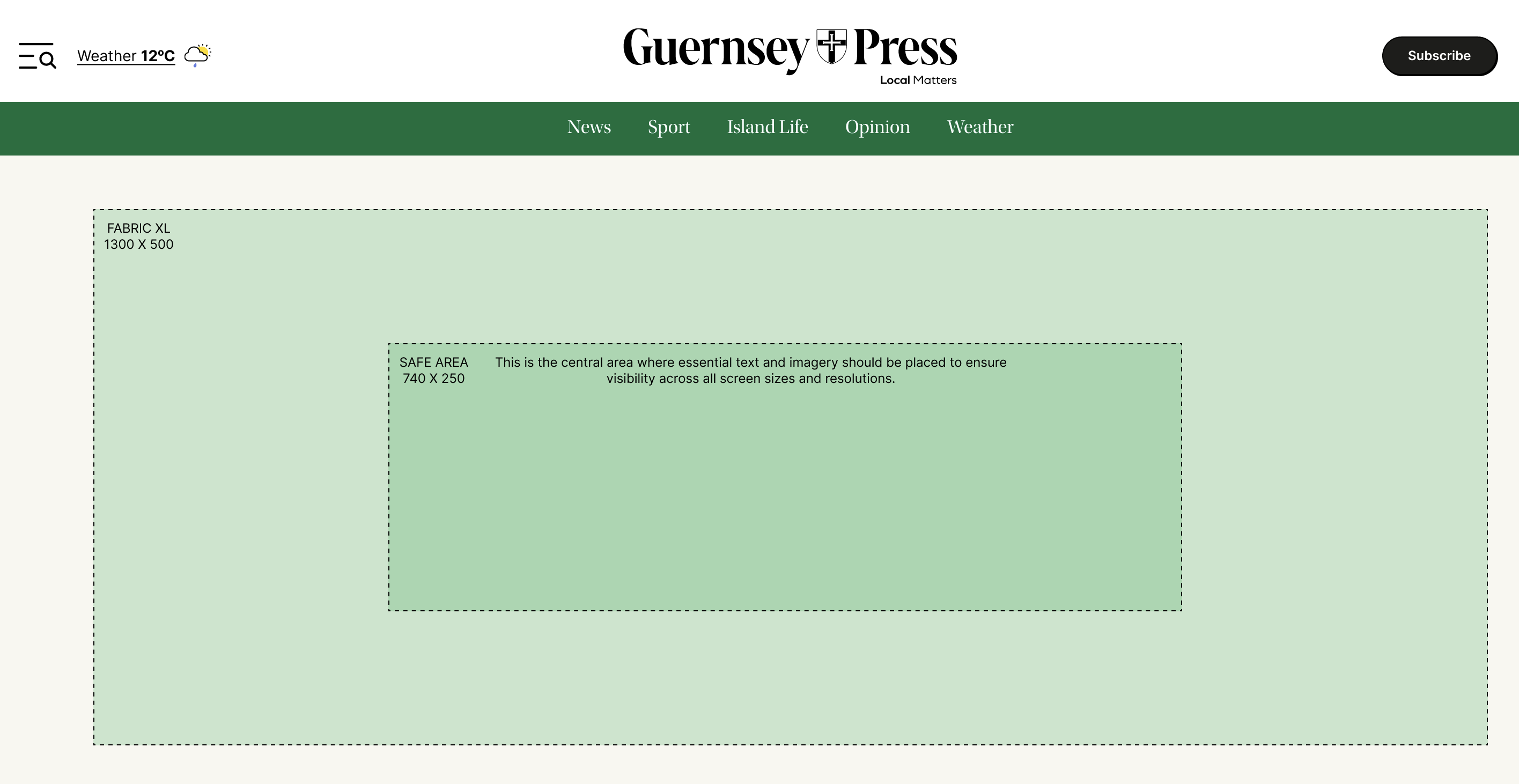
Design at 1300 × 500px with safe area of 740 × 250px.
Line Item Settings
| Type | Standard or Sponsorship |
|---|---|
| Priority | High (8-10 for Standard) |
| Pacing | Even over flight |
| Goal | Impressions (as per IO) |
| Frequency Cap | 1 per user per day (recommended) |
| Targeting | Placement + Custom KV as required |
| Creative Type | Third-party or Custom creative |
| Start/End | Flight dates, timezone confirmed |
Implementation
Step 1: Create Ad Unit
Create or identify the Fabric XL ad unit in GAM.
Step 2: Create Line Item
When creating the line item in GAM:
- Set the line item type and priority as per requirements
- Add expected creative size: 970x251
- Configure targeting (placement, key-values, etc.)
- Set frequency cap (recommended: 1 per user per day)
Step 3: Create the Creative
When creating the creative in GAM:
- Go to Delivery → Creatives → New Creative
- Select Custom Creative Template
- Choose Fabric XL from the available templates
- Enter the creative details and assets
- Ensure creative size is 970x251
Example: Selecting Fabric XL Template
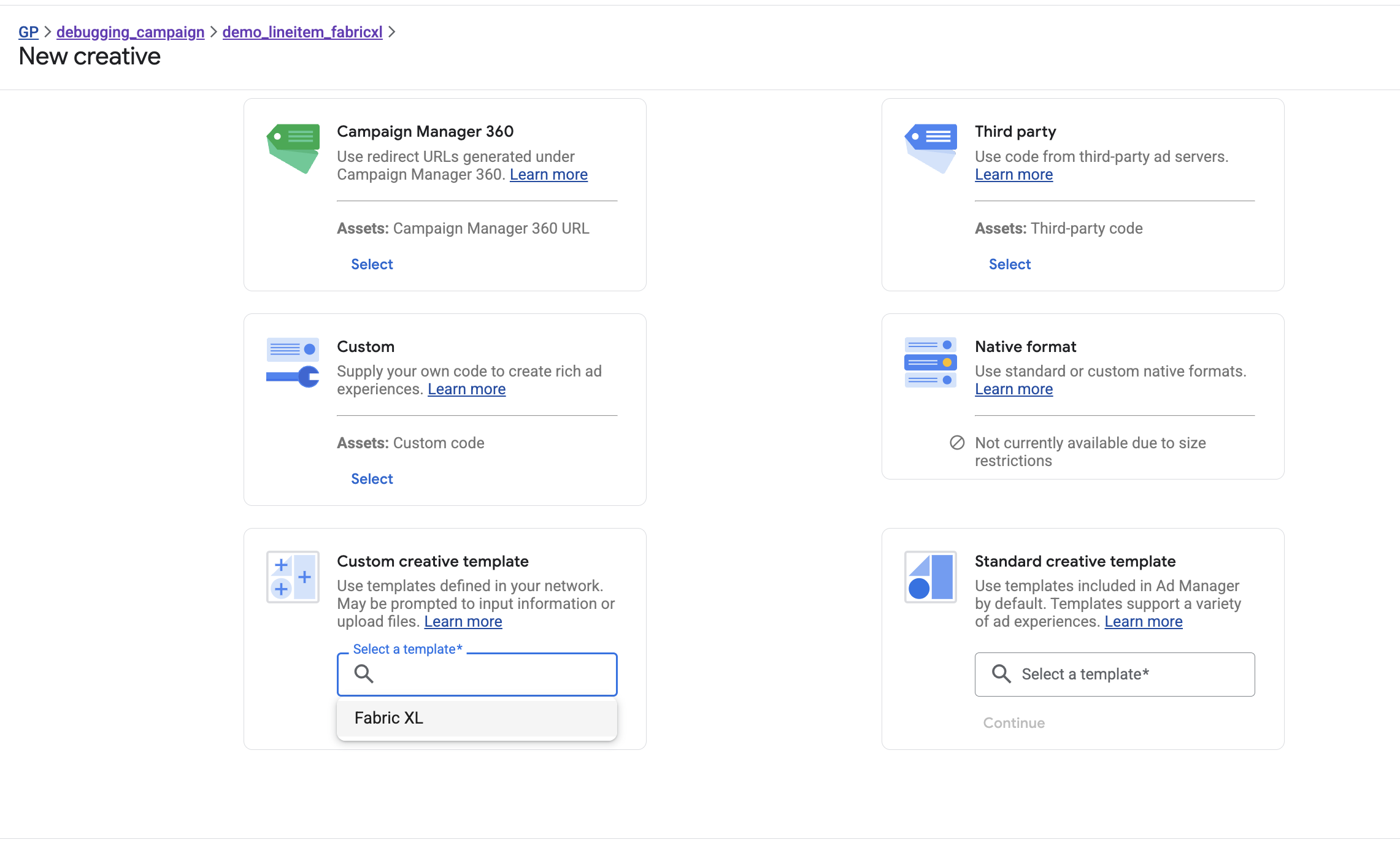
When creating the creative, go to Custom Creative Template and select Fabric XL.
After selecting the Fabric XL template, you need to configure the creative:
- Upload the image: Upload the Fabric XL creative image (2600 × 1000 pixels)
- Destination URL: Enter the click-through URL where users will be directed
- Complete any additional required fields
Example: Upload Image and Destination URL
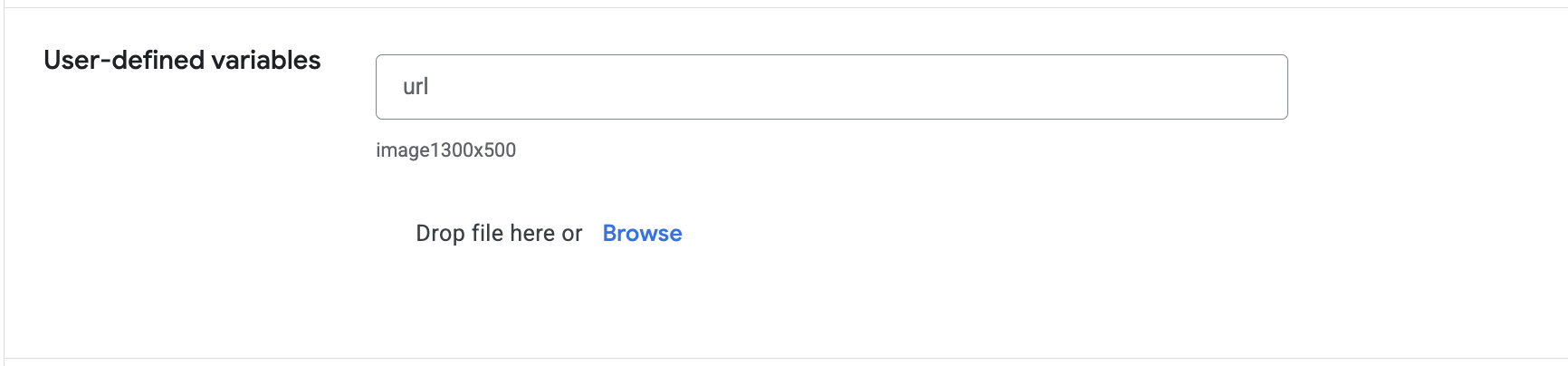
Upload the Fabric XL image and enter the destination URL for the creative.
Step 4: Attach Creative to Line Item
Associate the 970x251 creative with the line item and verify it's approved.
Troubleshooting
| Symptom | Likely Cause | Fix |
|---|---|---|
| Ad not displaying | Targeting mismatch | Verify targeting criteria and ad unit configuration |
| Creative not loading | File size too large | Optimize creative to meet file size requirements |
| Slow page performance | Heavy creative assets | Optimize images and scripts; implement lazy loading |
| Wrong creative size in GAM | Expected creative size not set to 970x251 | Edit line item and ensure expected creative size is 970x251 |